OSU Navigation Bar

The Ohio State University

Office of Distance Education and eLearning

Digital Union

Home > Blog > So You Want to Make a Video…

So You Want to Make a Video…

Queenie Chow

You know that thing teachers say, “For every person who raises their hand, there are probably 10 people who have the same question.” Well,  I received three emails last week asking essentially the same question: I have this video to make, but how?
Here’s a list of OSU-oriented resources and recommendations to get you started in the right direction:

Plan

  • Zoom out and think about the arrangements you’ll need to make: A workflow for video production.
  • Create a storyboard or some sort of simple outline of your video as a whole. This is essentially a map of your video, and will guide you in deciding what you need to shoot and record.
  • Ask yourself: What criteria must my video meet? What message am I trying to convey? What elements can I include to effectively convey that message?

Learn How

  • Vimeo provides a great overview about the video production process, including equipment use.
  • Digital Union offers free access to Lynda.com tutorials on whichever video editing program you choose; our lab offers iMovie, Final Cut, Premiere, and Windows Movie Maker.
  • For beginners, we usually recommend iMovie. It’s easy to learn and has all the features you’ll need for a basic video project. Best of all, Apple’s website has a complete set of free tutorials on how to use the program.

Get Equipment

  • Depending on the quality of video you need and your recording conditions, your smartphone, tablet, or webcam might be a sufficient camera. Otherwise, you can borrow equipment from Classroom Services.
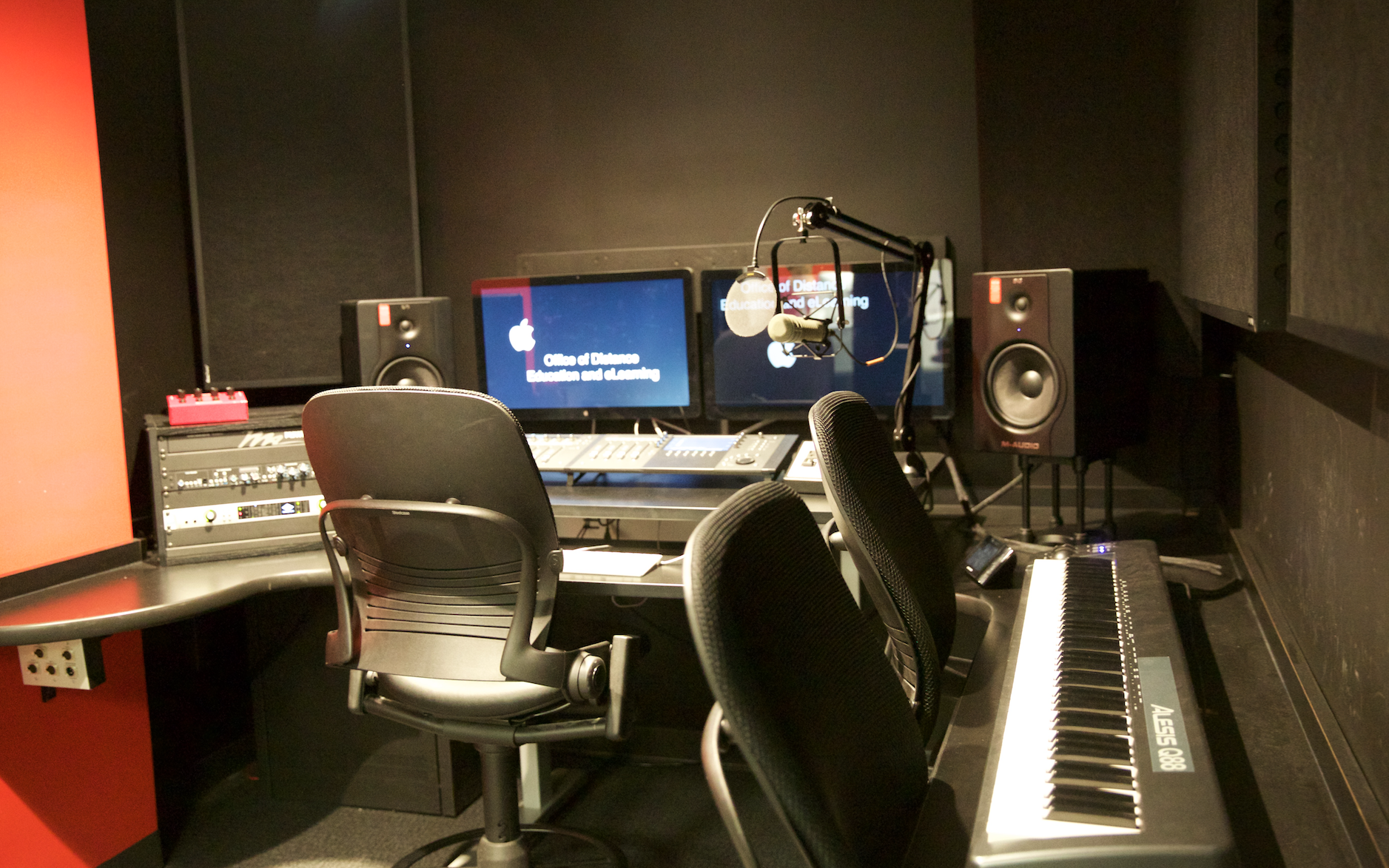
  • If you need to record a voiceover, you can reserve our Whisper Room recording studio; we also take walk-ins. If your recording needs to be made elsewhere, you can borrow a hand held voice recorder from Classroom Services. Again, depending on your recording conditions, your smartphone or tablet may be sufficient.
  • A green screen equipped video recording studio can be reserved through Media Services.
  • If you choose to edit at the Digital Union, bring a portable hard drive to store your files. Ideally, your hard drive should be: 7200rpm, portable, and connect via USB 3.0 or Firewire 400 (or better). If you’re in a pinch, sometimes a large capacity USB drive will work fine as your storage device. On campus, you can buy these from WiredOut or the Wexner store on campus. Standard video footage is 13 GB/hour so do that math and make sure you buy a drive of sufficient capacity. I recommend formatting your drive in ExFAT before starting your project. Read this to learn more about hard drive specs for video editing.
    • I  found a suitable hard drive (Lacie Rugged Mini) on CDWG for under $90. OSU staff can order it through eRequest > click on eStores link > click on Supplier Websites > CDWG Corporation > Paste this into the search box: Lacie Rugged Mini.
    • I found a suitable USB drive (EDGE DiskGO SuperSpeed USB 3.0 32GB) on CDWG for around $30. OSU staff can order it through eRequest > click on eStores link > click on Supplier Websites > CDWG Corporation > Paste this into the search box: edge DiskGo USB 3.0 32 gb.

Put It All Together

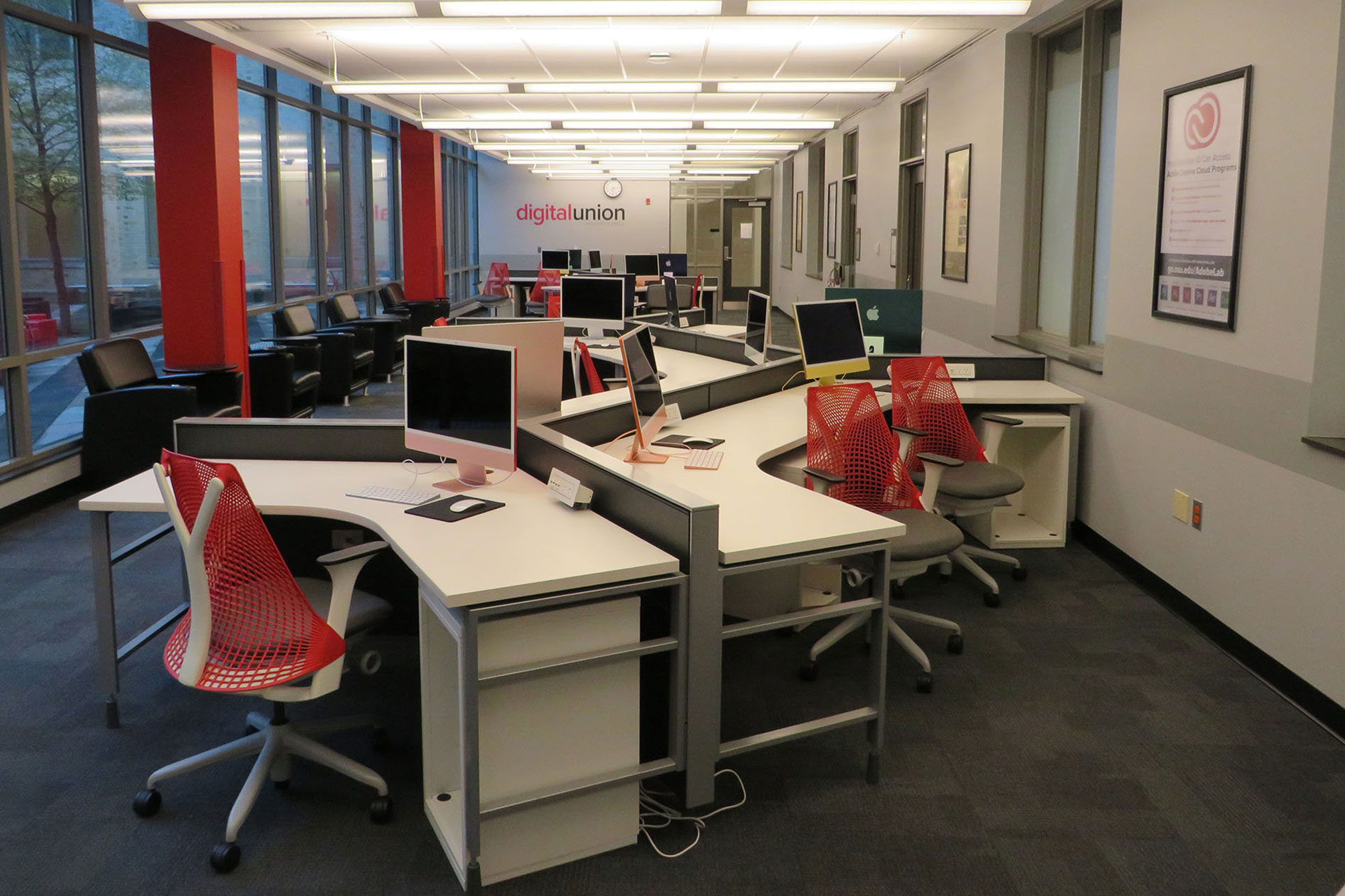
  • Come to the Digital Union computer lab for editing & assistance from our staff; we’ll help you decide which program to use, and assist you with the editing process.
  • If you don’t have proper editing software on your own computer, reserve time to work on a computer at the Digital Union; walk-ins welcome.
  • After you’ve finished editing your video, use this conversion method to produce a nice small file good for uploading to various sites or inserting into Powerpoint.
  • If you’d rather not worry about any of this, you can pay Media Services to shoot and/or edit the video for you.

Stay Legal

Publish Your Video

  • If your video is for a class, Media Services will host your video for free; you give them the video then they send you the URL to share.
  • Media Services can also help you host your video on iTunesU.

If you are an instructor thinking about assigning a video project to your class, take a look at our article So You Want to Assign a Video…

Don’t see what you need? Still feeling a bit overwhelmed? Contact us for a personal consultation. We’re happy to provide more specific advice regarding your own project; just ask!

VN:F [1.9.22_1171]
Rating: +4 (from 4 votes)
RedditPinterestLinkedInShare
This entry was posted in Digital Media, eLearning Pedagogy and Tools, How To, Technology (General) and tagged , , . : . Bookmark the permalink. Both comments and trackbacks are currently closed.

2 Comments

  1. Pam McClung
    Posted July 12, 2012 at 3:57 pm | Permalink

    This was a great article for walking people through what to think about and do when thinking about starting a video project. I will be doing some of this myself – and have already been over to use Lynda.com to study Final Cut Pro. It’s a great way to learn a program, especially a complex one like that. You have great resources at the Digital Union!

  2. Queenie Chow Queenie
    Posted July 13, 2012 at 2:36 pm | Permalink

    Thanks Pam, so glad to be of service! If you want to spread the word, you can get back to this article via the shortlink, http://go.osu.edu/videohelp.